In today’s digital landscape, users expect more than static screens. They seek fluid, engaging experiences that feel responsive and intuitive. Animation in user interface (UI) design plays a crucial role in achieving this. Beyond aesthetics, it serves as a communication tool—guiding users, providing feedback, and enhancing overall usability.
Integrating animation thoughtfully can transform an ordinary interface into an exceptional one. However, misusing animation can lead to confusion and slow down interactions. This blog dives into the significance of animation in UI design, when to apply it, and the best ways to implement motion effectively.
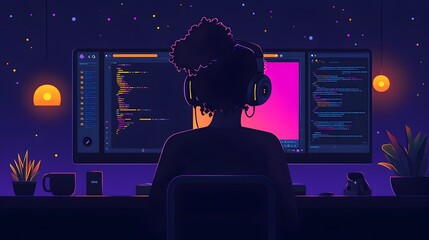
The Role of Animation in Enhancing User Experience
Animation bridges the gap between human interaction and digital interfaces. By mimicking real-world behaviors, it makes applications feel more natural and engaging.
Key Advantages:
- Smooth Transitions: Animations make switching between screens less jarring, creating a more fluid experience.
- User Guidance: Motion draws attention to specific areas, guiding users intuitively without the need for extra text.
- Feedback Loop: Micro-animations, such as button presses or swipe gestures, provide immediate feedback, reassuring users that their actions have been acknowledged.
- Brand Personality: Animations aligned with brand identity reinforce uniqueness and emotional connection.
Strategic Points for UI Animation
Knowing where and when to use animations is vital for crafting an intuitive interface. Here are the best areas to introduce animation:
1. Onboarding and App Walkthroughs
First impressions matter. Animations during the onboarding process simplify complex steps and reduce cognitive load. Instead of long paragraphs, quick animated tutorials can demonstrate app functionality clearly.
Example: A simple arrow animation pointing to a menu encourages first-time users to explore navigation options.
2. Button and Icon Interactions (Microinteractions)
Microinteractions are small yet impactful animations triggered by user actions. From tapping buttons to toggling switches, these animations offer subtle feedback that enhances the overall experience.
Best Practice: Keep microinteractions brief. A button that expands slightly on press or glows on hover provides enough feedback without overwhelming the user.
3. Loading Screens and Progress Indicators
No one likes waiting, but when loading is inevitable, animations ease the frustration. Progress bars, spinners, or skeleton loaders (temporary placeholders) offer visual reassurance that the system is working.
Pro Tip: Use engaging yet simple loading animations to maintain user interest without distracting from the task at hand.
4. Error Messages and Success Notifications
Animations are powerful for delivering feedback. Subtle shakes for incorrect inputs or gentle pop-ups for successful submissions enhance communication. These animations reduce ambiguity and ensure the user understands what’s happening.
Example: A form field shaking when filled incorrectly signals users to recheck their input. Pair this with color changes for maximum clarity.
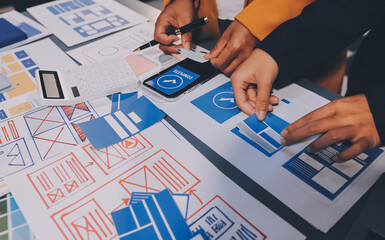
Principles for Crafting Effective UI Animations
To harness the full potential of animation without hindering performance, it’s essential to follow key design principles:
1. Purpose-Driven Motion
Animation should always serve a purpose—whether it’s guiding the user, highlighting changes, or indicating progress. Avoid adding motion purely for decoration.
Tip: Before animating an element, ask if it enhances usability or clarifies user action. If not, reconsider its necessity.
2. Timing and Easing
Animations that are too fast can feel abrupt, while those that linger disrupt workflow. Mastering the right timing is crucial. Easing (the acceleration and deceleration of motion) helps animations feel organic.
Guideline:
- Fast interactions (200-300ms): Button presses, dropdown menus.
- Moderate interactions (300-500ms): Modals, slide-ins, and pop-ups.
- Long interactions (500-800ms): Full-page transitions and complex animations.
3. Keep It Lightweight
Heavy animations can slow down apps, negatively impacting user experience. Prioritize performance by using optimized formats like CSS animations, SVGs, or Lottie files.
Pro Tip: Minimize the number of elements animated at once to avoid lags, especially on mobile devices.
4. Accessibility Considerations
Not all users respond well to motion. For some, excessive animation can cause discomfort or distraction. Always offer options to reduce or disable animations.
Implementation:
- Add a “Reduce Motion” setting in app preferences.
- Avoid excessive flashing or rapid transitions.
Mistakes to Avoid When Using UI Animation
Animations can elevate UI, but they can also detract from the experience if overused or misapplied. Watch out for these pitfalls:
- Over-Animating: Too many animated elements can confuse users and make the interface feel cluttered.
- Inconsistent Speed: Animations with varying speeds and styles break visual harmony.
- Neglecting Testing: Failing to test animations across devices leads to inconsistent performance. Ensure all animations function seamlessly on desktops, tablets, and mobile phones.
_1735922048387.jpg)
Recommended Tools for UI Animation
Crafting high-quality animations is easier with the right tools. Here are some trusted resources:
- Figma: A versatile tool for designing prototypes and basic animations.
- Adobe After Effects: Ideal for creating complex, high-fidelity animations.
- Lottie by Airbnb: Enables designers to export animations as lightweight JSON files.
- Framer: Allows designers to create interactive, animated prototypes without extensive coding.
Conclusion
Animation is a transformative element in UI design. When used effectively, it enhances user engagement, improves navigation, and breathes life into digital products. However, the key lies in balance—animations should be purposeful, smooth, and accessible to all users. By adhering to best practices and avoiding common pitfalls, designers can create interfaces that captivate and guide users seamlessly.
Master the art of crafting intuitive interfaces and unforgettable user experiences with our Advanced UI/UX Design Course. Gain hands-on skills, elevate your career, and create designs that leave a lasting impact.
Enroll now at Kaarwan and take your expertise to the next level!
FAQs
1. What role does animation play in UI design?
Animation enhances usability by providing feedback, guiding users, and creating engaging transitions between screens.
2. How can I optimize animations for performance?
Use lightweight formats (SVG, CSS) and minimize the number of elements animated simultaneously.
3. Are animations necessary for all apps?
Not always. Use animations to enhance functionality and clarity but avoid adding them purely for decoration.
4. What’s the difference between microinteractions and full animations?
Microinteractions are brief and triggered by user input, while full animations involve larger, screen-wide transitions.
5. How do animations improve loading times?
While they don’t speed up loading, animations like progress bars and skeleton loaders reduce perceived wait time by keeping users engaged.